How to Use Ebooks for Homeschooling: A Practical Guide

Last Updated: November 7, 2026
Quick Summary
To use ebooks for homeschooling, set up a dedicated reading device and space, then score each app against a written rubric before assigning it. Choose interactive ebooks that teach a named skill, build short reading activities around each book, and log progress weekly to adjust screen time.
- Score every educational app 1 to 5 on ten weighted criteria; anything below 70 is not assigned.
- Read a privacy policy in five minutes by searching for collect, share, retain, and delete.
- Run a six-step sequence per ebook: predict, read aloud, retell, draw, write, discuss.
- Keep activities to ten to fifteen minutes per session rather than one long block.
- Log minutes read, books finished, new words, and one retold detail each week.
Table of Contents
- Why Ebooks Fit Homeschooling in 2026
- Step 1: Set Up Your Devices and Reading Space
- Step 2: How to Evaluate Educational Apps Before You Assign Them
- Step 3: Check Educational App Privacy for Children
- Step 4: Choose Interactive Ebooks for Children That Teach
- Step 5: Build Homeschool Reading Activities Around Each Ebook
- Step 6: Track Progress and Adjust Screen Time
- Pick Your First Capite Universe Ebook Today
- Frequently Asked Questions
Why Ebooks Fit Homeschooling in 2026
Homeschooling has grown into a mainstream choice, and ebooks for homeschooling have grown with it. According to the National Home Education Research Institute's Fast Facts on Homeschooling, about 3.408 million students in grades K-12 were homeschooled in 2024-2025, up from roughly 2.5 million in spring 2019. That is a lot of families building a curriculum from scratch.
Parents who search for homeschool materials often want resources that arrive instantly and keep a 6- to 14-year-old actually reading.
Ebooks deliver on all three. But only if you vet them properly.
What the Research Says About Homeschool Growth
The research backs the shift. A Johns Hopkins University Institute for Education Policy survey released in April 2026 drew on a nationally representative sample of more than 2,400 parents of K-12 students, including current homeschoolers.
What does this mean for you? Digital materials are now a core part of home instruction, not a backup plan.
The six steps below answer that. We cover device setup, app evaluation, privacy review, ebook selection, reading activities, and progress tracking.
Step 1: Set Up Your Devices and Reading Space
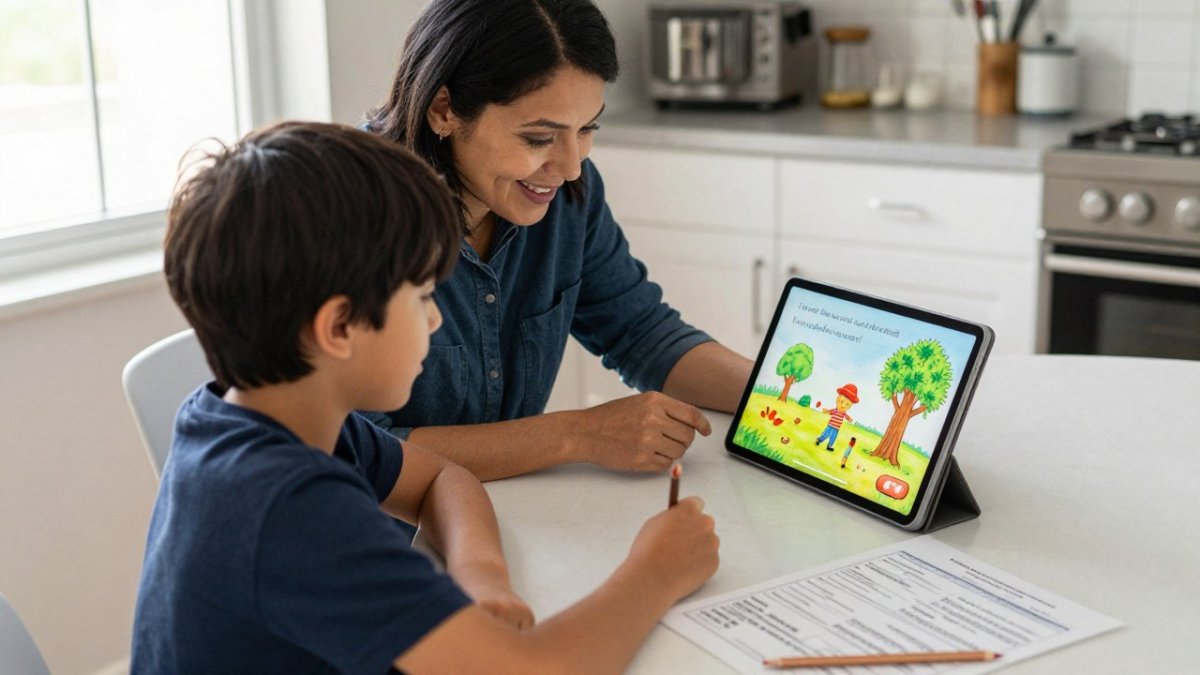
Start with the physical setup, because it decides how much reading actually happens. A tablet propped on a couch invites scrolling. A dedicated reading spot invites focus.
Here is a setup that works for most families:
- One device per reader. Shared tablets create login chaos and lost bookmarks.
- A stand or case that holds the screen at eye level.
- Offline downloads for car rides and waiting rooms.
- A printed worksheet and pencils beside the device for note-taking.
- Headphones if audio narration is part of the ebook.
Set a firm rule today: the device stays in the reading space during school hours. That single boundary cuts passive screen time more than any parental control.
Step 2: How to Evaluate Educational Apps Before You Assign Them
Evaluating an educational app means scoring it against fixed criteria and recording the evidence behind each score before your child ever opens it. Gut feel is not a method. A written, repeatable score is.
Most parents download first and ask questions later. That is backwards. Run every app through the same review before it earns a place in your week. The rubric below is built to be reused, so you are not reinventing the process every time a new app crosses your desk.
A Weighted Scoring Rubric You Can Reuse
Score each app from 1 to 5 on the ten criteria below, then multiply by the weight to get a weighted score. The maximum is 100. Anything scoring below 70 does not get assigned. Anything scoring below 50 is rejected outright, no matter how good the lesson looks.
| Criterion | Weight | What to Check | Evidence to Record | Score (1-5) | Weighted Score |
|---|---|---|---|---|---|
| Learning goal | 15 | Names a specific skill, not "fun learning" | The exact skill stated in the app description or lesson plan | ||
| Age fit | 10 | Content matches your child's grade level | The stated grade range and one sample activity you reviewed | ||
| Data collection | 15 | Collects only what the lesson needs | The specific data fields listed in the privacy policy | ||
| Privacy policy | 10 | Written clearly, easy to find, dated | The URL and the date you reviewed it | ||
| Third-party access | 10 | No ad networks or unrelated trackers | Names of any analytics or advertising partners disclosed | ||
| Parent controls | 10 | You can set limits and see activity | Screenshot of the parental dashboard | ||
| Offline access | 5 | Works without a live connection | Whether you tested it in airplane mode | ||
| Cost clarity | 5 | Price and renewal terms are obvious | The exact renewal terms in writing | ||
| Security evidence | 10 | Encryption, access controls, breach notice | Whether the policy states encryption in transit and at rest | ||
| Deletion path | 10 | A stated way to delete your child's data | The exact deletion request method (email, in-app, form) |
Weight
Print this rubric and keep it. You will reuse it every time a new app crosses your desk, and the evidence column is what makes the score defensible later.
A Sample Completed Evaluation
Here is how a completed row might look for a reading app you are considering for a 9-year-old:
- Learning goal (weight 15, score 4): The app states it builds vocabulary and comprehension. Evidence: the lesson plan names "context clues" and "retelling." Weighted score: 60.
- Data collection (weight 15, score 2): The privacy policy lists name, email, birth year, device identifier, and usage analytics. Evidence: quoted the policy section. Weighted score: 30.
- Third-party access (weight 10, score 1): The policy names two analytics vendors and one advertising partner. Evidence: quoted the partner list. Weighted score: 10.
- Deletion path (weight 10, score 3): Deletion requires an email to support with no stated timeline. Evidence: quoted the contact section. Weighted score: 30.
That app would score well below 70 on the full rubric and would not be assigned. The point is not the number. The point is that you can show your work and compare two apps on the same scale.
What to Do Today
Pick one app you already use with your 6- to 14-year-old. Open the rubric, fill in the evidence column for the first three criteria, and score it.
Watch out: a high learning-goal score can mask a low data-collection score. Weight the privacy and deletion criteria heavily, because a strong lesson is not worth a weak data practice.
Step 3: Check Educational App Privacy for Children
Educational app privacy for children comes down to one question: what does this app collect, and who sees it? Answer that before you approve anything.
App vetting is where most families skip ahead. Do not. A reading app can collect names, ages, photos, voice recordings, and behavioral tracking data. Some share that data with third parties or ad networks.
Here is what to look for:
- Data minimization. The app should collect only what the lesson needs.
- Parental consent. You should approve data collection, not discover it later.
- Retention and deletion. The policy should state how long data is kept and how to delete it.
- Third-party access. Watch for advertising and analytics partners.
- Security practices. Look for encryption and access controls.
Reading a Privacy Policy in Five Minutes
Open the policy and search for four words: collect, share, retain, and delete. Read only the sentences around them. That is your whole review.
Then ask three questions out loud:
- Does the app collect more than the lesson requires?
- Does it share data with anyone outside the company?
- Can I delete my child's data on request?
If any answer is unclear, do not approve the app. A College & Research Libraries study on barriers to students' learning with ebooks found that ebooks can present real barriers for some learners, so the tool has to earn its place on more than convenience.
Step 4: Choose Interactive Ebooks for Children That Teach
Interactive ebooks for children work best when the interaction serves the story, not the screen. Tap a word to hear it. Answer a question about the chapter. Then keep reading.
Filter with these questions:
- Does the ebook teach a named skill, like comprehension or vocabulary?
- Are the activities tied to the text, or bolted on?
- Can your child read it independently at their level?
- Does it hold up on a second read?
This is where story-driven material earns its keep. Our educational ebook catalog pairs each lesson with comprehension checks, vocabulary highlights, and printable activities, so the reading and the practice stay connected.
Step 5: Build Homeschool Reading Activities Around Each Ebook
Homeschool reading activities turn a finished ebook into a week of learning. The book is the start, not the finish line.
Try this sequence with any ebook:
- Predict. Read the title and cover, then guess the plot.
- Read aloud. Take turns, one page each.
- Retell. Summarize the chapter in three sentences.
- Draw. Sketch the setting or a character.
- Write. Answer one reflection prompt in a journal.
- Discuss. Ask two questions from the end-of-lesson guide.
Keep each activity short. Ten to fifteen minutes per session beats one long block. For a wider set of options, our guide to engaging reading activities has seven ready-to-use ideas.
Step 6: Track Progress and Adjust Screen Time
Track progress with a simple weekly log, then use it to set screen-time limits. Data beats guesswork.
Log four things each week:
- Minutes read
- Books finished
- New words learned
- One thing your child retold from memory
After four weeks, look for the trend. If reading time is climbing, keep the routine. If it is flat, change the material, not the child.
Set screen time around the lesson, not the clock. For a deeper look at healthy limits, read our guide to educational screen time, and for tracking methods, see ways to track reading progress.
Pick Your First Capite Universe Ebook Today
The hardest part of using ebooks in your homeschool is not the technology. It is choosing well and sticking with a routine long enough to see results.
We built Capite Universe to make that choice easier.
Start with one lesson. If you want the full library, our Capite Universe subscription gives you ongoing access to every new adventure.

Your child's next book is one click away. Browse the Capite Universe library, pick a story that matches their age and interests, and read the first chapter together tonight.
Frequently Asked Questions
Are ebooks effective for homeschooling?
Ebooks can work well for homeschooling when they are structured and paired with discussion. Research has noted that ebooks can present barriers for some students, so the format matters less than how you use it. Pick titles with comprehension prompts, assign a short reading block, and follow up with a printed activity. Families that treat ebooks as one tool inside a routine, not the whole curriculum, get more consistent results. Capite Universe lesson ebooks include reflection prompts and end-of-lesson activities for this reason.
How can I protect my child's privacy when using educational apps?
Start by reading the privacy policy and terms of service before your child logs in. Look for what data is collected, whether it is shared with third parties, and how long it is retained. Turn off advertising and tracking where the app allows it, and create accounts with a parent email rather than your child's. Educational app privacy for children also depends on your state's student data rules and your homeschool group's policies. Review settings every few months, since apps update their terms.
How do I make reading ebooks part of a homeschool routine?
Anchor ebook reading to a fixed time each day, such as 20 minutes after lunch, so it becomes automatic. Keep the device charged and the title already open before your child sits down. For ages 6-8, read together and pause for questions. For ages 9-14, assign a chapter and follow it with a short written or drawn response. Rotate between fiction and nonfiction every few weeks to keep interest high and to cover both reading and content-area skills.
How much screen time should homeschoolers spend reading ebooks?
There is no single number, but a practical split is 20-30 minutes of focused ebook reading per day for ages 6-10 and 30-45 minutes for ages 11-14, alongside offline reading and play. Count only active reading, not time spent browsing a library. If your child is a reluctant reader, start with 10 minutes and build up. Pair each session with a hands-on task, such as a printable activity, so screen time produces something off-screen as well.


