Educational Screen Time for Children: A Parent's Guide

Table of Contents
- What Counts as Educational Screen Time for Children
- Screen Time Recommendations for Children by Age
- How to Spot High-Quality Educational Apps for Kids
- Building a Family Media Plan for Children
- Balancing Screen Time with Play and Sleep
- Adapting Educational Screen Time for Different Learning Needs
- Conclusion
- Frequently Asked Questions
Last Updated: October 17, 2026
What Counts as Educational Screen Time for Children
Educational screen time for children is any screen use designed to build a specific skill, and it works best when a child is actively thinking rather than passively watching. At Capite Universe, we define it by what the child does, not by the device. A story that asks a child to predict an ending counts. A video that plays while a child stares counts far less.

The difference matters because passive viewing and active learning leave very different marks. Many parents tell us they worry about screens in general. The sharper question is what happens during those minutes.
Active Learning vs. Passive Viewing
Active learning means the child responds, chooses, builds, or explains. Passive viewing means content washes over a child with no response required.
- Active: a read-along story with questions, a drawing task, a printable worksheet
- Passive: autoplay videos, background television, endless swipe feeds
- Mixed: a game with real problem-solving buried under ads
A common mistake is judging an app by its cartoon cover. What most guides miss is that the same app can be active one day and passive the next, depending on how your child uses it.
Screen Time Recommendations for Children by Age
Age-based guidance from the American Academy of Pediatrics media use guidelines gives families a starting frame: prioritize sleep, physical activity, and offline play, then fit screens around them. The useful way to read any age band is as a ceiling for entertainment media, not a target to hit and not a cap on school-required work.
Here is how we would translate the common age bands into practice:
| Age group | Entertainment screen ceiling | What to favor | Caregiver role |
|---|---|---|---|
| Under 18 months | Avoid except video chatting | Face-to-face connection, songs, board books | Adult holds the device and narrates |
| 18-24 months | Little to none; short, high-quality co-viewed sessions only | Simple stories, naming games, cause-and-effect play | Adult sits alongside and talks through it |
| 2-5 years | About 1 hour per day of high-quality programming | Co-viewed shows, read-alongs, drawing and matching apps | Adult previews, co-views, and extends offline |
| 6-10 years | Consistent limits that protect sleep, movement, and homework | Guided skill apps, reading practice, creative projects | Adult sets the plan and reviews content |
| 11+ years | Agreed limits with growing independence | Homework tools, projects, creative and coding apps | Adult negotiates rules and checks in |
Three mechanisms explain why the bands differ. First, younger children learn language and self-regulation through responsive back-and-forth with a caregiver, and a screen cannot supply that responsiveness on its own, which is why co-viewing matters more the younger the child. Second, the preschool years are when children build the attention and pretend-play skills that later academic work depends on, so short, interactive sessions beat long passive ones. Third, school-age children can follow a plan and explain their choices, which is why written family rules replace a timer as kids get older.
A few practical trade-offs are worth naming:
- A ceiling is not a quota. A 4-year-old who uses 30 active minutes and then plays outside is better off than one who fills a full hour with autoplay video.
- School-required device time is separate. Homework, reading apps assigned by a teacher, and online lessons are learning time, not entertainment, and should be counted and planned separately. Keep a simple two-column log, required and recreational, so the recreational ceiling stays honest.
- Weekends and weekdays can differ. Many families allow a longer weekend block and a shorter weekday block, as long as sleep and outdoor time stay protected.
- Older children need rules, not just minutes. For a 12-year-old, an agreed plan covering when devices are put away matters more than a strict daily number.
Write the age band and the ceiling on the family plan itself, and note whether each session was required or recreational. Reviewing that log for two weeks tells you more than any single day's timer.
How to Spot High-Quality Educational Apps for Kids
High-quality educational apps for kids share three traits: a clear learning goal, active participation, and no pressure to keep scrolling. Everything else is decoration.

What most reviews skip is the business model. An app funded by ads has different incentives than one funded by families. Check for in-app purchases, autoplay, and recommendation feeds before you hand over a device.
A Five-Question Test for Any App or Video
Run this before you download or press play:
- What skill does this build? If you cannot name it in one sentence, skip it.
- Does my child do anything? Look for tapping, answering, drawing, or explaining.
- Can my child stop easily? Autoplay and streak counters make stopping hard.
- Is it age-appropriate in content and pace? Fast cuts and loud rewards are red flags.
- Can we extend it offline? A story that leads to drawing or a printable activity earns its place.
A "yes" on at least four questions is a good sign. Two or fewer means it is entertainment, which is fine, but call it what it is.
Watch the first five minutes yourself with the sound on. The opening minute tells you whether the app teaches or just rewards tapping. If the first thing your child sees is a spinning prize wheel, the learning goal is secondary.
Building a Family Media Plan for Children
A family media plan for children is a written agreement covering when, where, and what screens are used, plus what happens offline. Write it together. Rules handed down get broken; rules built together get followed. The version below turns general advice into a routine you can actually run on a school night.
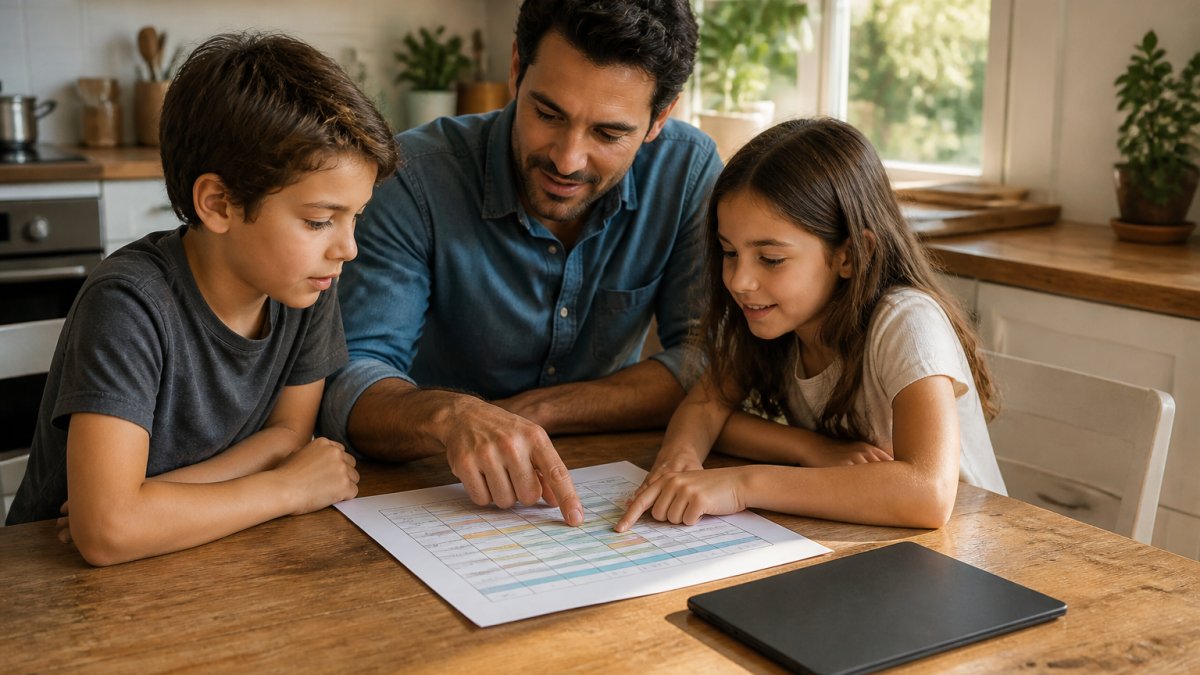
Step 1: Set up the plan in one sitting
- List the day's non-negotiables: sleep, meals, chores, outdoor time, and homework.
- Split device time into two columns, required (school-assigned lessons, reading apps, research) and recreational (games, videos, shows).
- Pick screen-free zones, such as bedrooms and the dinner table.
- Agree on when screens happen, not just how long, for example, required work right after snack, recreational time after outdoor play.
- Choose content together from a shortlist you approve.
- Set a review date in two weeks and adjust.
Step 2: Run a co-viewing session
Co-viewing is not sitting in the same room. It is talking about what is on the screen. Use these prompts during the first few sessions:
- "What do you think happens next?" (prediction)
- "Why did that character do that?" (inference)
- "How would you build that?" (transfer)
- "What was the best part, and what would you change?" (reflection)
For older children, ask them to teach you one thing the app or video showed them. Explaining is one of the strongest signs that learning happened.
Step 3: Set time boundaries that survive a tired Tuesday
- Put a visible start and stop signal on the plan, a kitchen timer or a device-level limit, not a parent's voice.
- End recreational sessions with a transition activity already chosen, such as a snack or a walk, so stopping is not the last event.
- Keep required school work in its own block so it does not quietly absorb the recreational ceiling.
- Use the FCC guide to parental controls and media tools to back up the plan with content filters and time limits at the device level.
Step 4: Follow up offline
The learning is more likely to stick when it moves off the screen. After a session, try one of these:
- Draw a scene or character from what your child watched.
- Retell the story to a sibling or caregiver.
- Act out the problem the app asked them to solve.
- Find one real-world example of the concept, counting, measuring, or naming something on a walk.
Step 5: Review and adjust
At the two-week review, ask three questions: Did sleep and outdoor time hold? Did required and recreational time stay separate? Did your child explain or apply anything they learned? Adjust the plan based on the answers rather than on how many minutes were logged.
Balancing Screen Time with Play and Sleep
Balancing screen time with play and sleep comes down to order, not willpower. Screens go last, after movement, homework, and wind-down. A bedtime routine that ends with a story read aloud, not a video, protects sleep far better than any timer.
- Keep screens out of the hour before bed
- Protect at least one long block of offline play daily
- Use movement breaks between sessions
- Keep background media off during meals and homework
The single most useful change most families can make is moving screens to the end of the day. It protects sleep, and it removes the daily argument about turning things off.
Adapting Educational Screen Time for Different Learning Needs
Children with disabilities, neurodivergence, or different learning needs often benefit from screens more, not less, when the content fits. The goal is the same: active use, clear goals, and caregiver involvement. The delivery changes.
- Choose calm interfaces with few distractions
- Allow extra time and repeat sessions freely
- Use captions, audio support, and adjustable text
- Pair screen tasks with hands-on materials
- Watch for frustration and stop before it builds
For struggling readers, story-driven content with strong audio support can rebuild confidence. Our CUCWA cursive writing app, for example, pairs slow stroke-order demonstrations with printable worksheets, so handwriting practice moves between screen and paper. The Center on the Developing Child at Harvard University notes that skill-building grows from repeated, responsive practice with a caring adult, which is exactly what co-viewing provides.

Conclusion
The hardest part of managing screens is not picking an app. It is holding a plan together on a Tuesday night when everyone is tired. Capite Universe builds story-driven learning worlds for children ages 6 to 14, with teacher-approved content, interactive lessons that build reading and critical thinking, and printable activities that pull learning off the screen. Start with our five-question test, write your family plan, and choose content worth the minutes. Shop with Us and turn screen time into story time.
Frequently Asked Questions
What counts as educational screen time for children?
Educational screen time is any screen use designed to teach a specific skill or concept, and that asks the child to think rather than just watch. A story-driven app where a child reads, chooses, and solves problems counts. A video that explains fractions and pauses for practice counts. Autoplay cartoons with no goal do not, even if they sit in an app labeled educational. The test is simple: after 20 minutes, can your child tell you one thing they learned or did? If not, it was entertainment with an educational label.
How much screen time is appropriate for school-age children?
Most pediatric guidance sets a consistent daily limit for children ages 6 and older rather than a single number, and asks families to prioritize sleep, physical activity, and homework first. Many families land on 1 to 2 hours of recreational screen time on school days, with educational use counted separately when it is genuinely active. The number matters less than the pattern: the same limit every day, agreed in advance, and never traded against bedtime or outdoor play.
Is educational screen time better than entertainment screen time?
It can be, but only when the content is high quality and a caregiver is involved. Well-designed educational media supports vocabulary, problem-solving, and background knowledge, especially when an adult co-views and talks about what is happening. Passive entertainment does not build those skills. The bigger risk is unsupervised screen use that crowds out sleep, reading, and offline play, so judge the whole day, not just the app.
How do I set screen time limits for an 8-year-old?
Write the rules down together and post them where the device lives. Name the daily limit, the screen-free times (meals, homework, the hour before bed), and the places screens cannot go. Use the device's built-in timer so the limit is enforced by the tablet, not by you arguing. Give a five-minute warning before time ends, and offer a specific alternative activity. Consistency in the first two weeks does more than any parental control setting.


